Help centre › Files for print
Preflight before print
Catch what makes a print shop send files back: text near the cut, low-resolution images, too much ink — fixed in one click.
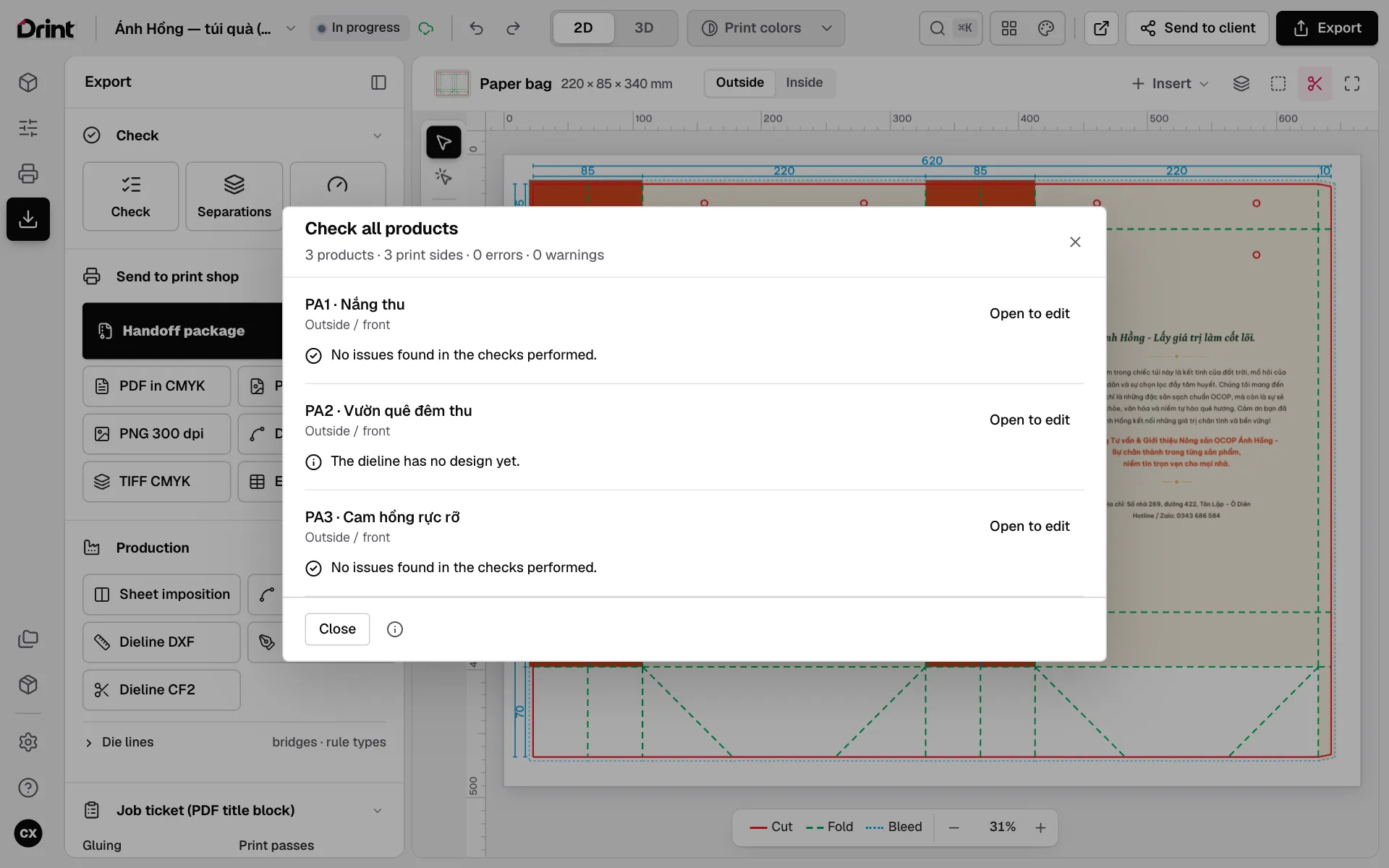
Steps
- Open Export on the left rail.
- Under Check, click Check: Drint lists every error and warning on the dieline.
- Each one has a Fix button beside it — fixed items are crossed off.
- Click Separations to see each ink plate (C, M, Y, K and spot colours) and the total ink at the darkest spot.
What Drint checks
Text and objects outside the safe area or close to the cut, missing bleed, low-resolution images, total ink over the board’s limit, small four-colour black text, white set to overprint, one spot colour named several ways, too many plates, RGB images that will shift in print…
Preflight is free on every plan — run it before every file you send.
Still stuck? Write to support@drint.io