Help centre › Getting started
Your first project
Pick a product, type its size, and open its 2D dieline and 3D model in a minute.
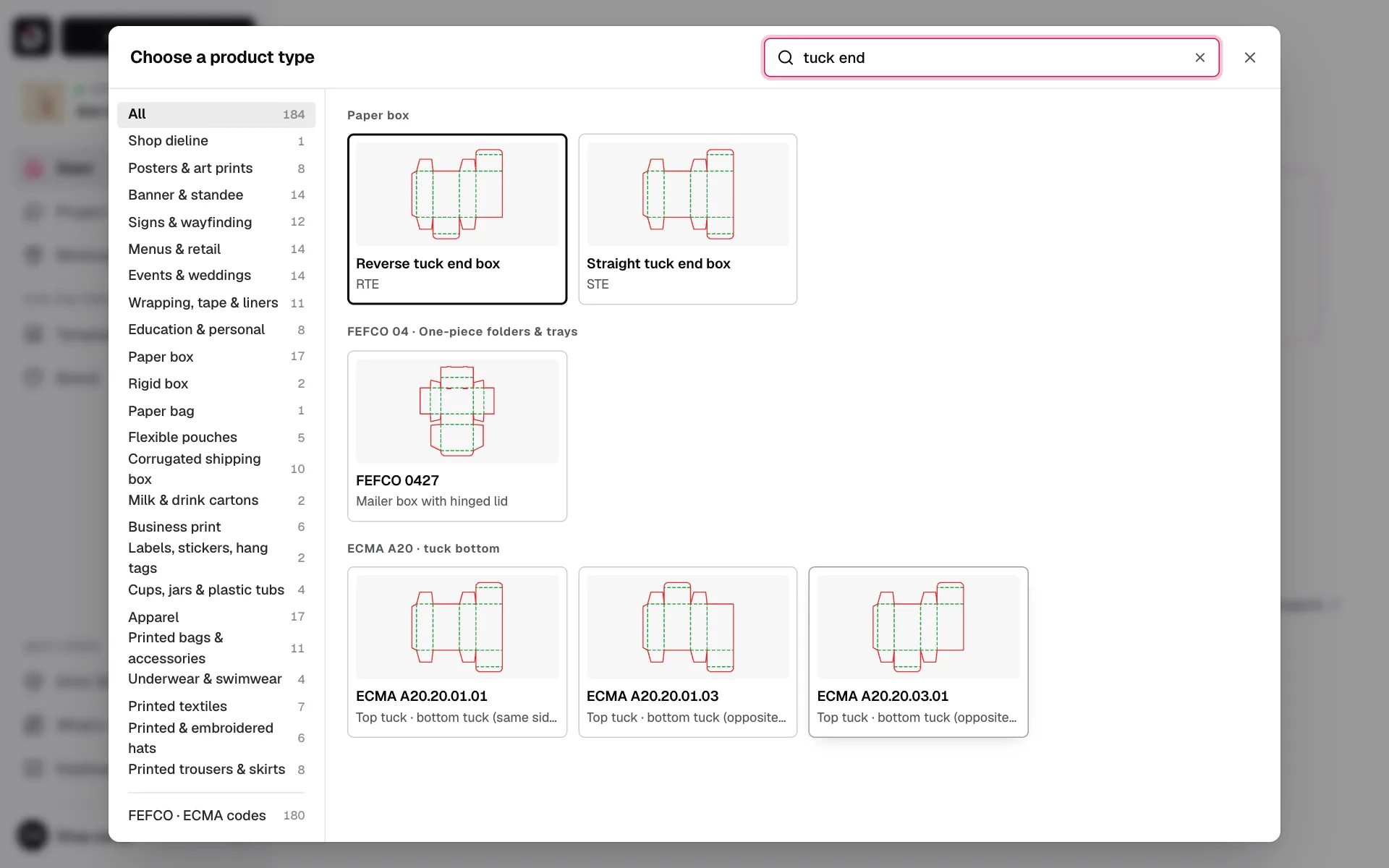
Steps
- Click New project at the top left.
- In Choose a product type, search by name (“tuck end box”, “paper bag”, “squeeze tube”) or browse the groups on the left.
- Pick a ready size, or Enter your own size if your client already has measurements.
- Check the Material, then click Create project.
What you get
A dieline at the exact size, with cut lines (red), folds (dashed) and the bleed area. A Drint sample — logo, product name, facts — is already laid on it so you see a finished pack straight away. The sample is ordinary objects: edit it, delete it or replace it with your design.
The 2D / 3D switch in the middle of the top bar flips between the flat dieline and the 3D model of the same product.
Projects save themselves after every change. Reopen them any time from Project.
Still stuck? Write to support@drint.io