Help centre › Designing
Designing on the dieline
Text, images, logos and shapes placed straight onto each face; layers, safe area, outside and inside.
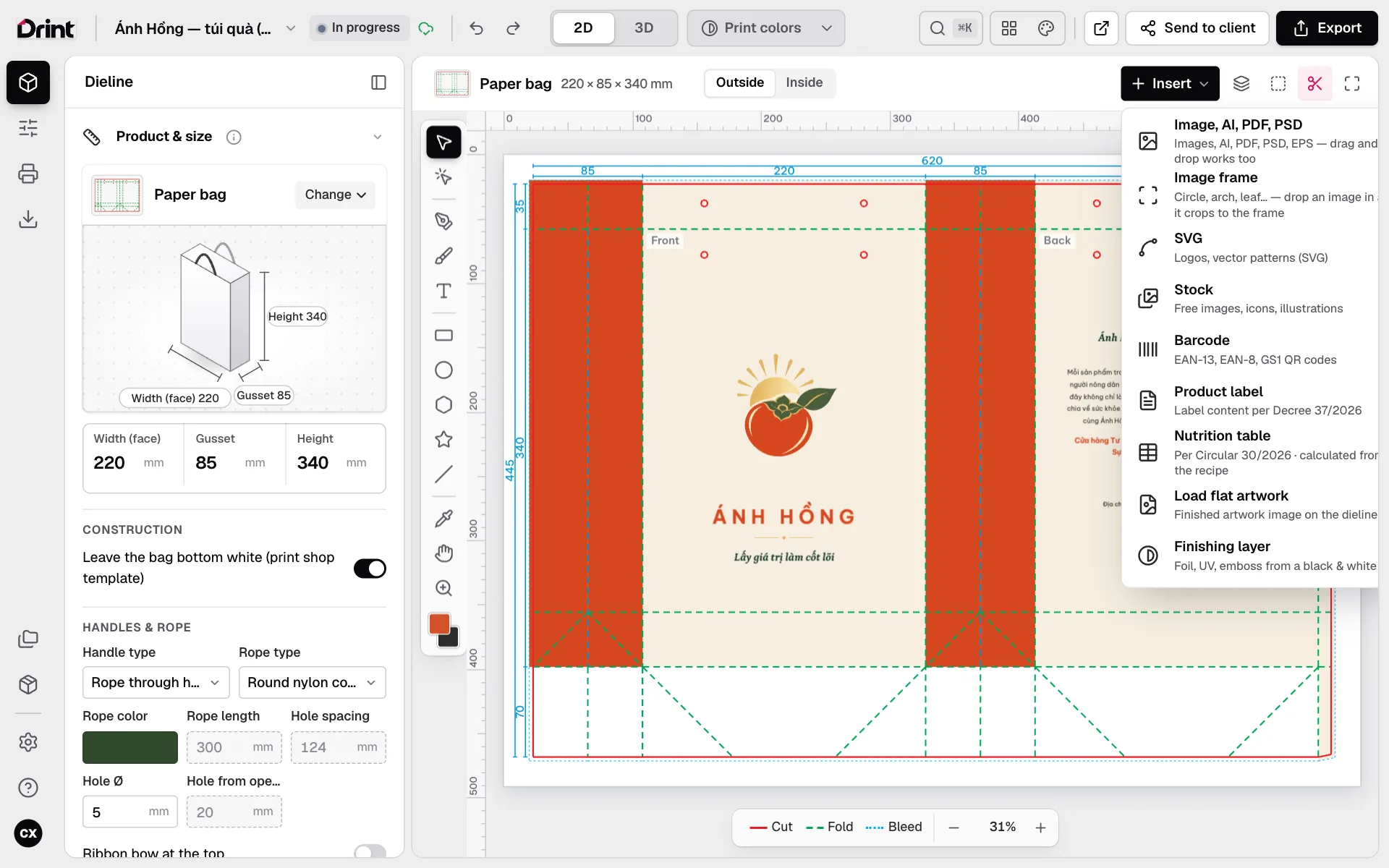
Tools
The vertical toolbar beside the dieline: select, pen, brush, text, rectangle / ellipse / polygon / star, line, eyedropper, hand, zoom. Click Insert above the dieline to add images, logos, icons, barcodes and QR codes.
Anything placed on a face is clipped to that face — text never spills onto the side panel when the box folds.
The three lines
Cut (red): where the knife goes. Fold (dashed): the creases. Bleed: background carried past the cut so no white edge shows if the cut drifts. Turn on Safe area to see where important text should not go.
Outside and inside
The Outside / Inside switch above the dieline moves to the inside print (two-sided printing). The inside shows the right way round when the box opens in 3D.
Layers
Click Layer to see, reorder, lock and hide every object.
You can edit on the 3D model too: click text on the box to select it, drag to move, type to change it.
Still stuck? Write to support@drint.io